> Quick view: Singpass passkeys opened to Android users on Wednesday 9 September 2026. A passkey is a unique key your phone creates and keeps on the device, unlocked by your face, fingerprint or six-digit Singpass passcode. You log in with no password and no SMS OTP, so a phishing site has nothing to steal, and the key will not work on a fake website at all. Setting one up is free and takes about two minutes: update the Singpass app, tap Create passkey on the home screen, then turn on autofill for Singpass in your device settings. It works on your phone for now; GovTech says desktop support arrives by the end of 2026. Existing methods (QR login, Face Verification, SMS OTPs) all still work.
Most anti-scam advice puts the work on you. Check the URL. Do not click the link. Read the OTP message properly before you type it. It all assumes you will spot the fake every single time, which is a lot to ask of a person on a crowded bus at 7pm.
A passkey takes a different approach. It removes the thing the scammer is trying to get.
GovTech began notifying Android users to create a Singpass passkey on Wednesday 9 September 2026, ten weeks after the feature opened to iPhone users on 1 July 2026. About 800,000 passkeys have been created since that launch.
What a passkey actually is
When you create a passkey, your phone generates a unique digital key and stores it on the device. Logging in means unlocking that key with your face, fingerprint or six-digit Singpass passcode.
Nothing is typed. Nothing is transmitted. There is no password and no one-time password anywhere in the flow.
That produces two protections that no amount of care can give you on its own:
| What it means | |
|---|---|
| The key stays on your device | Singpass states the passkey never leaves your device. Since you never type or share anything, there is nothing for a scammer to capture, intercept or trick out of you. |
| The key is bound to the real Singpass login | Your device creates a key that only works with official Singpass logins. On a spoofed site it does not work, even if the page is a flawless copy and even if you were the one who clicked through to it. |
That second line is the one worth rereading. Being careful is a filter that has to work every time. A passkey does not ask you to notice anything.
How to set one up, free, in about two minutes
- Update the Singpass app. GovTech's instruction to Android users is to make sure the app is up to date, otherwise the option will not appear.
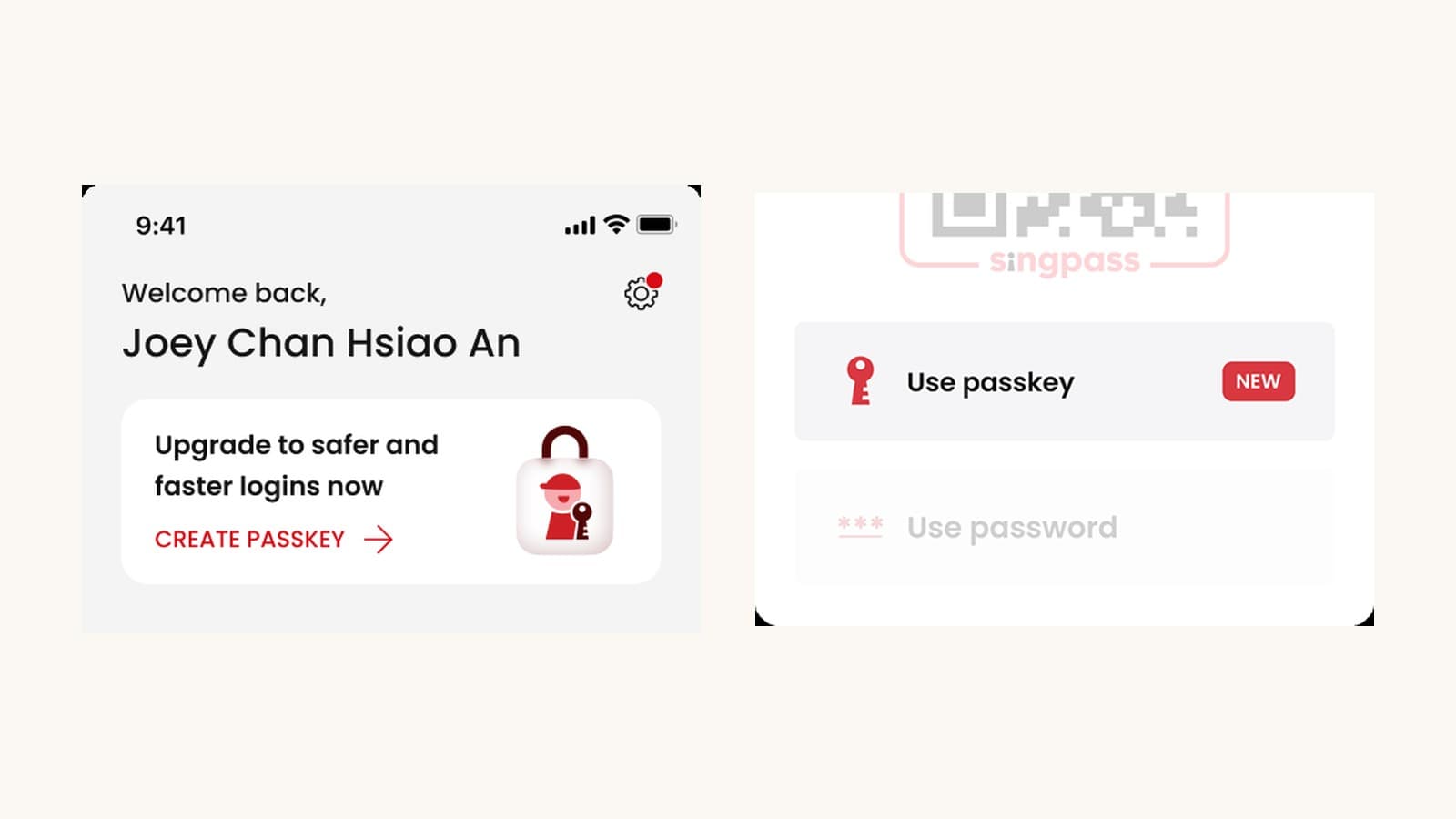
- Open the app and tap the Create passkey banner on the home screen, then follow the steps.
- Turn on autofill for Singpass in your device settings.
Step 3 is not optional, and it is the one people skip. Autofill is what lets the device find the passkey that lives inside the Singpass app. Singpass spells this out: when you choose Use passkey at login, the device uses the autofill service to detect that a passkey is available in the app and to prompt the app to confirm your login. Without it, the device cannot retrieve the key at all.
Singpass also addresses the obvious worry about that setting: turning on autofill does not mean your information is automatically filled into websites. It is used only to retrieve and use your passkey when you choose to log in with one.
Notifications are going out in phases, so the banner may not be there yet. You do not have to wait for it. You can start directly at app.singpass.gov.sg/createpasskey.
Where it works, and where it does not yet
Passkey login is a phone feature for now. GovTech says the feature will be extended to desktop users by the end of 2026.
Singpass has already published what the desktop flow will look like, which is useful to know in advance because it needs one thing switched on: at the Singpass login screen you choose Use passkey, scan the passkey QR code with your phone, and enable Bluetooth on both devices so it can verify it is you. Then you unlock with biometrics or your Singpass passcode.
What you are not giving up
This is an addition, not a replacement. GovTech was explicit at launch that passkeys supplement the existing methods, and QR login, Face Verification and SMS One-Time Passwords all continue to work.
So creating a passkey costs you nothing in flexibility. It puts a Use passkey option on the login screen and leaves everything else where it was. If you are on a friend's laptop and your own phone is flat, the old routes are still there.
The one real limit to understand: the passkey never leaves the device that created it. It protects logins from that phone. Change phones and you create a new one.
What this means for you
If you use Singpass for anything that matters, and in Singapore that is most people, this is a two-minute setting that closes off the single most common way accounts get taken: a convincing fake page that harvests what you type.
It is free, it is reversible in the sense that your old login methods stay live, and it is the rare piece of scam advice that does not depend on you being alert at the wrong moment.
The timing is not accidental either. It lands the same week Parliament passed the Scams (Countermeasures) and Other Matters Bill, which gives the police powers to disable accounts already being used by scammers. Passkeys work at the other end of the same problem: stopping the credential from being stolen in the first place.
*Photos: Singpass official campaign visuals (singpass.gov.sg). Figures and dates: GovTech, 9 September 2026, and singpass.gov.sg/passkeys, last updated 9 September 2026.*